Helpers
The Helpers page is a collection of utility tools organized into two sections:
- TOOLS — Tab-style buttons across the top that open interactive tools: Hosts File Manager, Wake-on-LAN, Swappiness (Linux), CPU Frequency (Linux), and SSD TRIM.
- MAINTENANCE — Clickable cards that trigger one-shot system actions with a confirmation dialog.
TOOLS
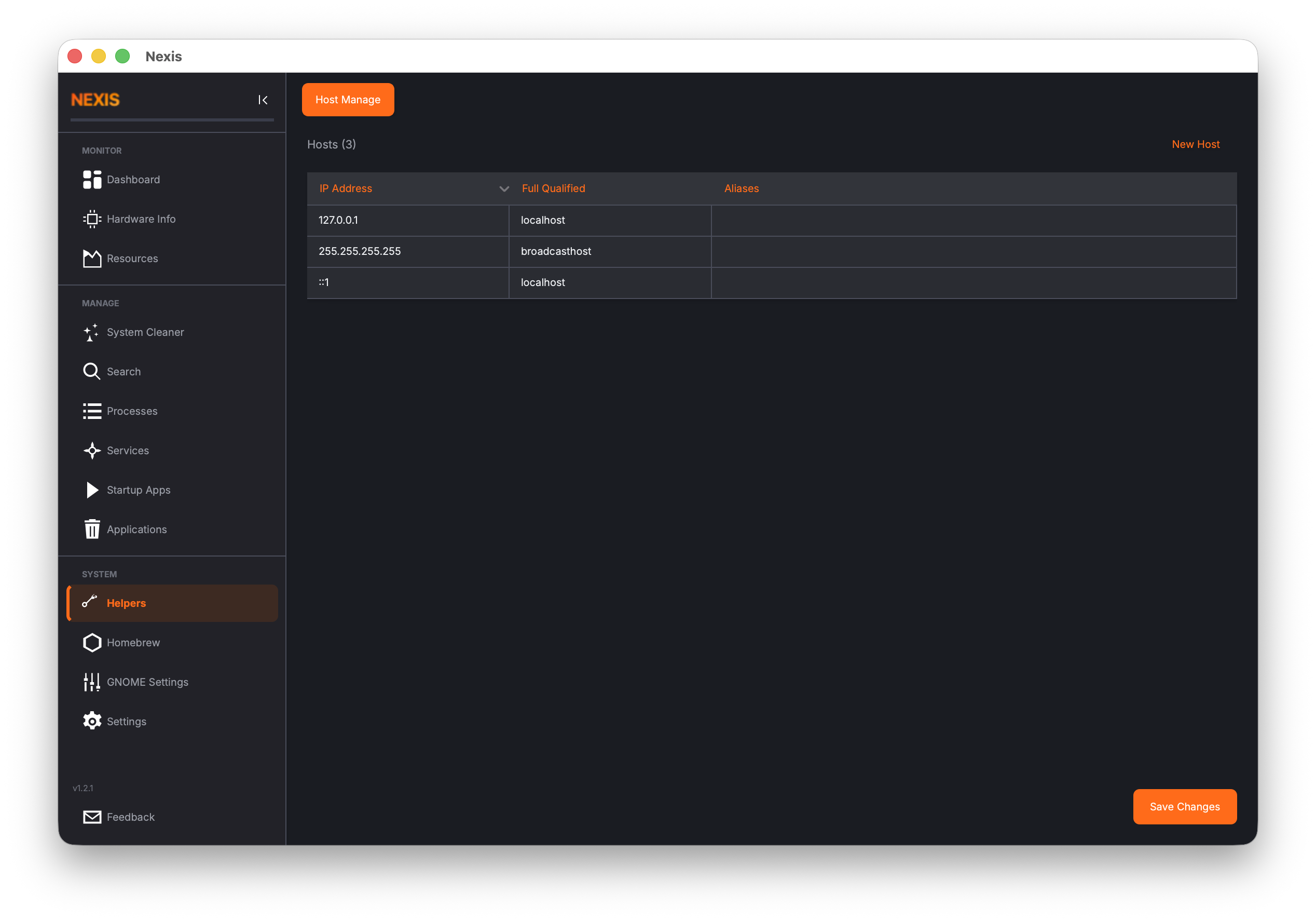
Hosts File Manager
A graphical editor for the /etc/hosts file. Click Host Manage in the TOOLS navigation to open it.
What is the Hosts File?
The hosts file (/etc/hosts) maps hostnames to IP addresses on your local machine. When your computer tries to reach a hostname, it checks this file before querying DNS. Common uses include:
- Blocking unwanted domains by pointing them to
127.0.0.1 - Setting up local development aliases (e.g., mapping
myapp.localto127.0.0.1) - Overriding DNS for testing or debugging
Viewing Entries
Nexis reads and parses your current hosts file when you navigate to the tool. Each entry appears as a row showing the IP address, hostname, and any aliases.
Adding an Entry
Click Add to create a new entry. Provide:
- IP Address — An IPv4 (e.g.
127.0.0.1) or IPv6 (e.g.::1) address - Hostname — The domain name to associate (e.g.
myapp.local) - Aliases (optional) — Additional hostnames resolving to the same address
Nexis validates each field as you type and shows a clear error message if anything is malformed.
Editing and Deleting Entries
Select an entry and click Edit to modify it, or Delete to mark it for removal. Changes are not written to disk until you click Save.
Saving Changes
Clicking Save shows a confirmation dialog summarizing exactly what will change. Before writing, Nexis creates a backup of your current hosts file at /etc/hosts.nexis-backup.
Because the hosts file is owned by root, administrator privileges are required to save. You will be prompted for your password (or Touch ID on macOS).
Wake-on-LAN
Discover machines on your local network and send Wake-on-LAN magic packets to power them on remotely — no root required.
Discovering Hosts
Click Discover Hosts to read the ARP cache (/proc/net/arp on Linux, arp -a on macOS) on a background thread. The table populates with:
| Column | Description |
|---|---|
| IP Address | The device’s current IP |
| MAC Address | Hardware address used to send the magic packet |
| Hostname | Resolved hostname (if available) |
| Friendly Name | Editable label you can set to identify the device |
Friendly names are saved in settings as a JSON map keyed by MAC address, so they persist across sessions.
Waking a Device
Select a device in the table and click Wake to send a standard 102-byte UDP magic packet to the broadcast address on port 9. The device must have Wake-on-LAN enabled in its BIOS/UEFI and the network must support directed broadcast for this to work.
Swappiness (Linux)
Controls how aggressively the kernel moves data from RAM to the swap partition. Surfaces the value of /proc/sys/vm/swappiness alongside your current swap usage.
Presets
| Preset | Value | Best for |
|---|---|---|
| Desktop | 60 | General use — default Linux value |
| Performance | 10 | Prefer RAM; minimize swapping |
| Low-RAM | 80 | Systems with little RAM; swap early |
You can also drag the Custom slider to any value from 0 to 100.
Persisting Across Reboots
Enable Persist across reboots to write the chosen value to /etc/sysctl.d/99-nexis-swappiness.conf. Without this toggle, the value reverts to the kernel default on the next boot. Nexis reads the file back after writing to confirm the change was applied.
CPU Frequency (Linux)
Fine-grained control over CPU turbo boost and clock frequency scaling. Reads and writes the cpufreq kernel interface (/sys/devices/system/cpu/cpuN/cpufreq/*).
Note: This tool is disabled with an explanatory notice when
power-profiles-daemonis managing the CPU backend, since the two systems would conflict.
Controls
- Turbo Boost toggle — Enable or disable Intel turbo boost (
intel_pstate/no_turbo) or AMD boost (cpufreq/boost) - Min / Max frequency sliders — Set the minimum and maximum clock frequency. The sliders are linked so the minimum can never exceed the maximum
- Governor selector — Apply a cpufreq governor (powersave, ondemand, performance, schedutil, etc.) across all cores at once
- Per-core governor grid — Expand Show per-core governors to override the governor on individual cores independently
Persisting Settings
Enable Persist on launch to have Nexis re-apply your frequency settings each time it starts. Settings that already match the current kernel state are skipped, so the re-apply is a no-op when nothing has changed.
SSD TRIM
Monitors and manages TRIM, the mechanism that tells SSDs which blocks are no longer in use so they can be erased in advance for faster future writes.
Linux
| Control | Description |
|---|---|
| TRIM Timer toggle | Enable or disable fstrim.timer (systemd) |
| Last run / Next run | Timestamps parsed from systemctl list-timers |
| Run TRIM now | Fires fstrim -av and shows per-mount output in a scrollable dialog |
The Run TRIM now button is hidden if fstrim is not installed.
macOS
On macOS, APFS manages TRIM automatically and no manual intervention is needed. This section displays a read-only status panel showing whether TRIM is enabled for your SSD, parsed from diskutil info -plist / (with a system_profiler SPNVMeDataType fallback).
MAINTENANCE
Maintenance actions appear as cards. Click a card to confirm and run the action. macOS shows four cards; Linux shows one.
Flush DNS Cache
Clears your system’s local DNS cache, forcing your computer to re-query DNS servers for hostname lookups. Useful when:
- A website has changed its address but your machine remembers the old one
- You have edited the hosts file and want changes to take effect immediately
- DNS-related issues are causing websites to fail to load
A confirmation dialog appears before the flush runs. A success or failure message is displayed after completion.
macOS: Clears the cache with
dscacheutil -flushcacheand restartsmDNSResponder. Requires administrator authentication.
Linux: Tries
resolvectl,systemd-resolve, ornscdin order, using whichever DNS cache service is available.
Rebuild Spotlight (macOS)
Deletes and rebuilds the Spotlight search index. Fixes issues where Spotlight returns incomplete or incorrect results, or fails to find files you know exist.
A confirmation dialog warns that Spotlight search will be temporarily unavailable while the index rebuilds. Depending on your disk size, reindexing may take 30 minutes to several hours and runs in the background.
Requires administrator authentication because it runs
mdutil -E /.
Verify Disk (macOS)
Runs a read-only integrity check on your startup disk — the same check Disk Utility performs when you click “First Aid”. After the check completes (typically 1—5 minutes), Nexis displays the full diagnostic output in a scrollable dialog with a clear pass or fail verdict.
No administrator password is needed — this is a read-only operation.
Rebuild Launch Services (macOS)
Rescans the Launch Services database and restarts Finder. Fixes common macOS annoyances like:
- The wrong application opens when you double-click a file
- The “Open With” right-click menu is missing entries or shows duplicates
- Application icons appear as generic white documents
Uses the safe rescan mode (
lsregister -r). Finder will briefly disappear and reappear as it restarts.
What’s Next
Manage your package repositories on the APT / Homebrew page.