Disk Map
Disk Map is Nexis’s built-in visual disk usage analyzer — no external application required. It scans a directory tree and renders the result as an interactive, colorful visualization that makes it easy to spot exactly what’s taking up space.
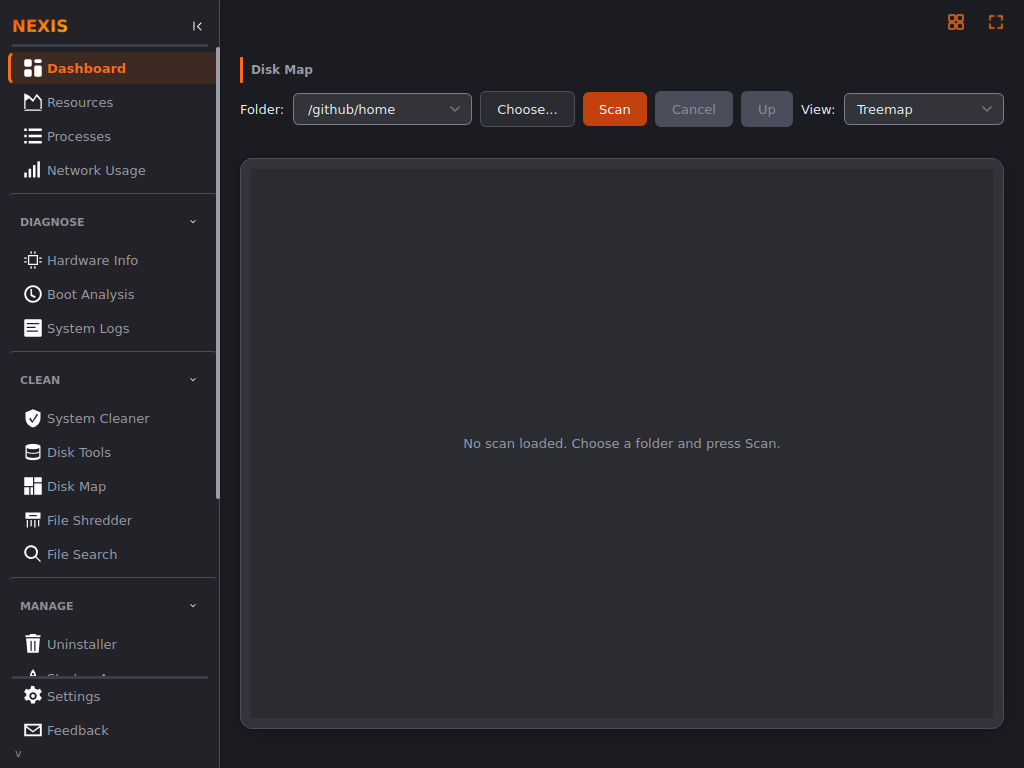
Opening Disk Map
You can reach Disk Map several ways:
- Click Disk Map in the sidebar’s CLEAN section
- Click Built-in Treemap on the Disk Usage Launcher card on the Resources page
- Open the Command Palette and search for “Disk Map”
- Use the tray icon’s quick menu
Visualization Modes
A toolbar picker at the top of the page switches live between three visualization modes without re-scanning:
| Mode | What it shows |
|---|---|
| Treemap | Nested rectangular frames — larger items get larger tiles. Parent folders are drawn as labeled outer frames with their contents nested inside. |
| Bubble Map | Circle-packing layout — folders are drawn as labeled membranes containing their children’s bubbles, sized proportionally. |
| Sunburst | A radial layout — the innermost ring represents the scanned folder, with each ring further out representing one more level of nesting. |
Every mode shows two folder levels at once, so you can see a parent folder and its immediate children in a single view without drilling in.
Tip: Very small files and folders are grouped into a single muted “remainder” wedge or tile instead of each getting an invisible sliver — the largest dozen items are always broken out individually first.
Navigating the Map
- Double-click any folder to drill into it — the view smoothly transitions to show that folder’s contents.
- Hover over any item to see a tooltip with its name and exact size.
- Use the breadcrumb or a back action to drill back out to a parent folder.
Accessibility: if your system’s Reduce Motion setting is turned on, Disk Map skips the drill-in/out animations and switches views instantly instead.
Acting on Files and Folders
Right-click (or use the context menu) on any item in the map to:
- Reveal in file manager — opens the item’s location in your system’s file manager.
- Move to trash — sends the file or folder to your system trash. This is a safe operation; nothing is permanently deleted.
Scanning Behavior
Disk Map scans in the background and keeps running even if you navigate away to another page — switch back to Disk Map later and your scan will either be finished or still in progress, without starting over. Symlinks are skipped and hard links are de-duplicated, so the byte counts you see match what a dedicated tool like Baobab or DaisyDisk would report.
What’s Next
Looking for large or old files by different criteria, or duplicate files across your system? See the Disk Tools page.