Boot Analysis
The Boot Analysis page helps you answer “why does my computer take so long to start?” by showing which services and processes contribute the most to your boot time.
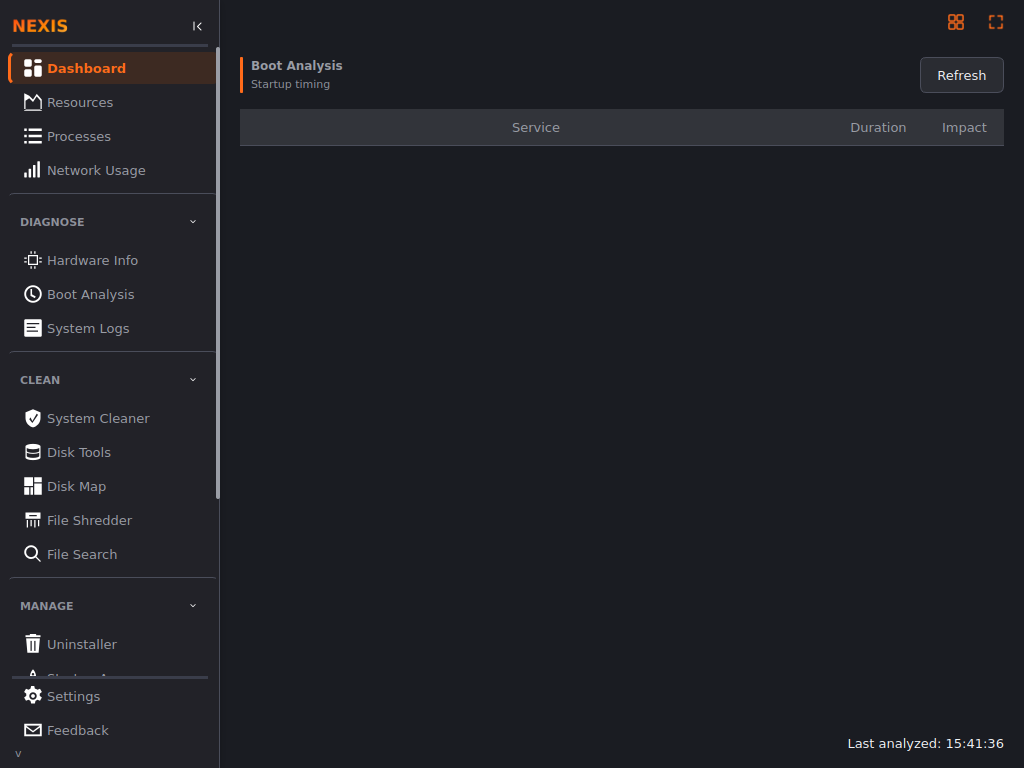
What You’ll See
Linux: Nexis runs
systemd-analyzeto get your total boot time, andsystemd-analyze blameto break it down by service. Each service is ranked from slowest to fastest and labeled by severity:
Label Duration High 5 seconds or more Medium 1-5 seconds Low Under 1 second If
systemd-analyzeisn’t available on your system (for example, on a non-systemd distribution), the page shows “not available” instead of a breakdown.
macOS: Per-service startup timing requires elevated privileges that Nexis doesn’t request, so macOS shows your total uptime since last boot instead of a per-service breakdown.
Refreshing the Analysis
Boot analysis runs in the background so the interface stays responsive while it works. Click Refresh at any time to run a new analysis on demand — useful after you’ve disabled a startup service and want to confirm it’s no longer showing up in the breakdown.
Acting on What You Find
Boot Analysis is a diagnostic view — it doesn’t disable anything directly. If you spot a slow service you don’t need at startup:
- Linux: disable it with your service manager, or use the Services page in Nexis to disable a systemd unit.
- Check the Startup Apps page for user-level applications that launch at login — these are separate from system services and are the more common source of a slow desktop login.
What’s Next
Review and manage applications that launch automatically at login on the Startup Apps page.