File Shredder
File Shredder overwrites a file’s contents before deleting it, rather than just removing the file’s directory entry the way a normal delete does. It’s a destructive-by-design tool: nothing is shredded automatically, and every deletion requires you to explicitly select the item and confirm.
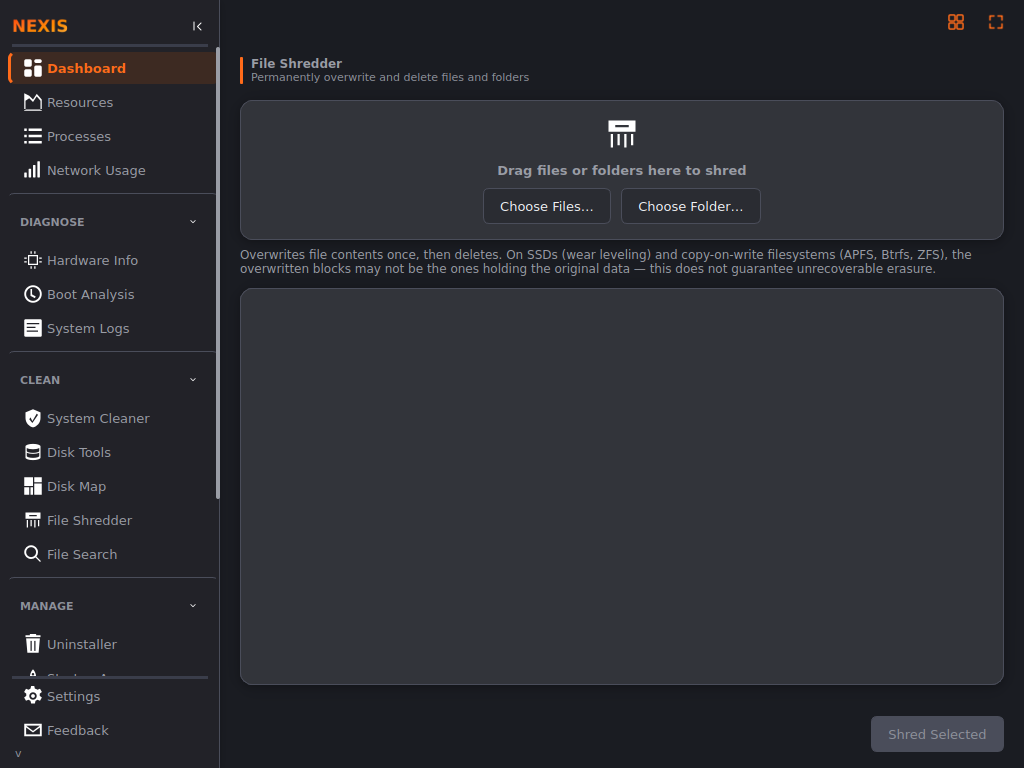
Adding Files and Folders
There are two ways to stage items for shredding:
- Drag and drop files or folders directly onto the drop zone.
- Click Choose Files… or Choose Folder… to pick items through a file dialog.
Once an item is staged, Nexis computes its recursive size and file count in the background and shows both in the list, along with a running total at the bottom of any item you’ve staged so far.
Shredding Selected Items
Click Shred Selected once at least one item is staged and its size/count preview has finished resolving. You’ll see a confirmation dialog before anything happens — read it, since this action cannot be undone.
During shredding, a progress bar and status line show which item is currently being processed. If any individual item fails to shred (for example, due to a permissions error), it’s counted and reported in the final summary rather than silently skipped.
How Shredding Works
- Each file’s contents are overwritten with a single pass of zeroes, flushed to disk before the file is removed.
- Emptied folders are removed from the bottom up, after all their contents are shredded.
- Symlinks are removed directly without ever touching whatever they point to.
Important: a single-pass overwrite does not guarantee unrecoverable erasure on every storage type. Solid-state drives use wear leveling, and copy-on-write filesystems (APFS, Btrfs, ZFS) may keep old copies of data elsewhere on disk. File Shredder is a meaningful step above a normal delete, but it is not a substitute for full-disk encryption if you need a guarantee against a determined attacker with physical access to the drive.
Scope
File Shredder only acts on paths you explicitly choose — it never runs with elevated privileges and never interacts with the System Cleaner’s exclusion rules, since every item is a deliberate, individual choice rather than part of an automated scan.
What’s Next
Looking to reclaim space from files you didn’t mean to keep in the first place? See the Disk Tools page for finding large, old, or duplicate files.